How Glasshouse works
Glasshouse gives each of your clients a private page that shows only their items, and only the columns you choose. Clients don't need a monday.com account or a seat.
Before you start
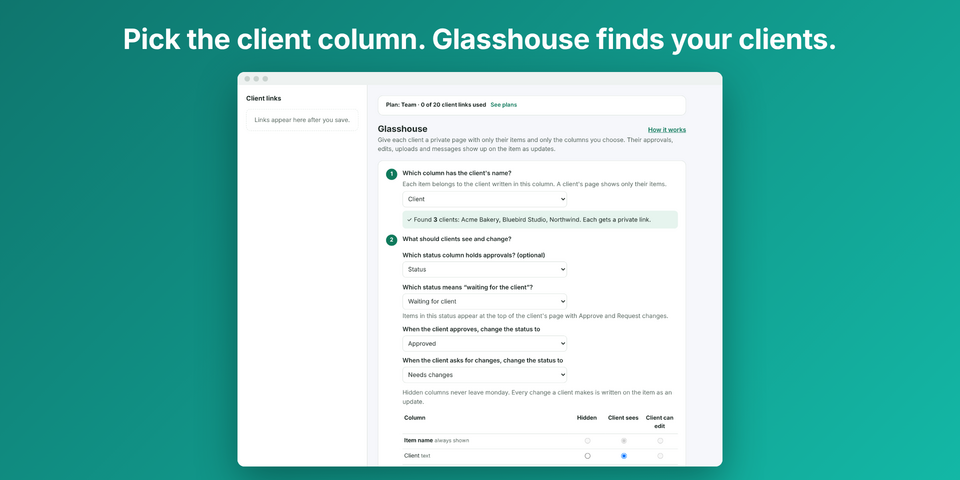
You need a board with a column holding each item's client name (text, dropdown, status or a connected board all work).
- Install Glasshouse and add the view. On your board, click + next to the views, choose Apps, then Glasshouse.
- Connect. Click Connect and approve. This lets Glasshouse read the board and post updates. You do this once per account.
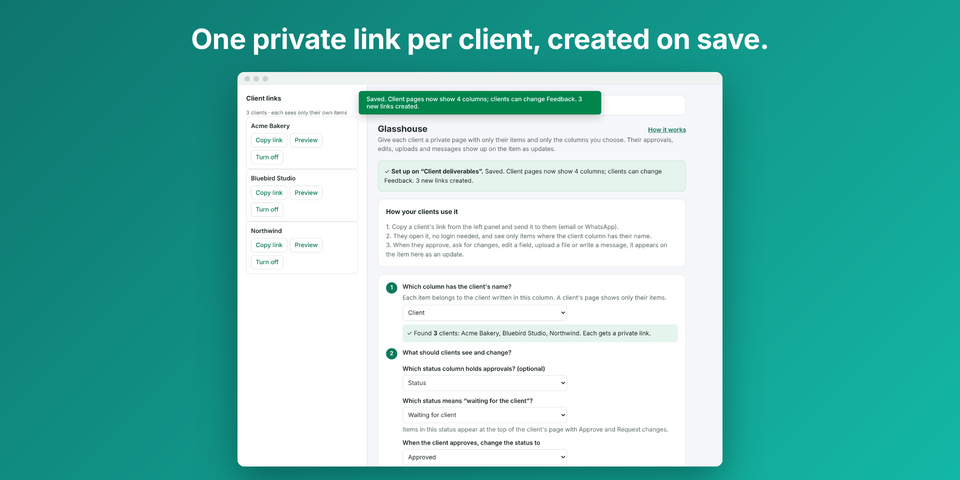
- Pick the client column. Glasshouse shows the clients it found, like “Found 3 clients: Acme, Globex, Initech”.
- Choose what clients see and change. For each column pick Hidden, Client sees or Client can edit. The preview shows exactly what a client will see.
- Save and copy a link. Every client gets a private link in the left panel. Copy it and send it by email or chat.
What your client sees
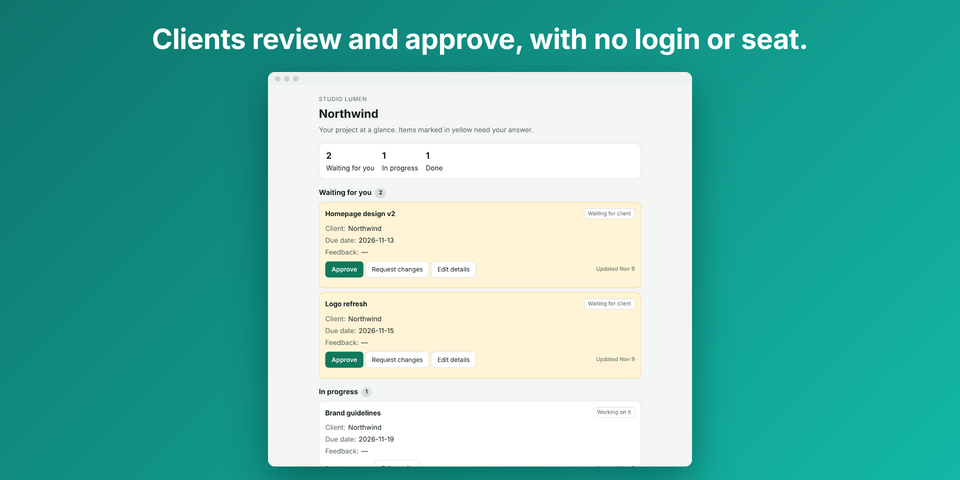
Their items in three groups: Waiting for you, In progress and Done. They can approve, ask for changes, edit the columns you allowed, upload files and send messages. Each action appears on the item as an update, so your team sees who did what.
Turning a link off
Click Turn off next to the client in the left panel. The old link stops working right away.